Learning how to install IPTV on Smart TV does not always mean downloading the same application on every television. The correct IPTV setup depends on your TV operating system, the apps available in your region, and the type of IPTV login or playlist you have.
In this guide, you will learn how to set up IPTV on Android TV, Google TV, Samsung Smart TV, LG Smart TV and compatible streaming devices. We also explain the Downloader method and how an IPTV player such as 8K Player VIP can be installed on supported devices.
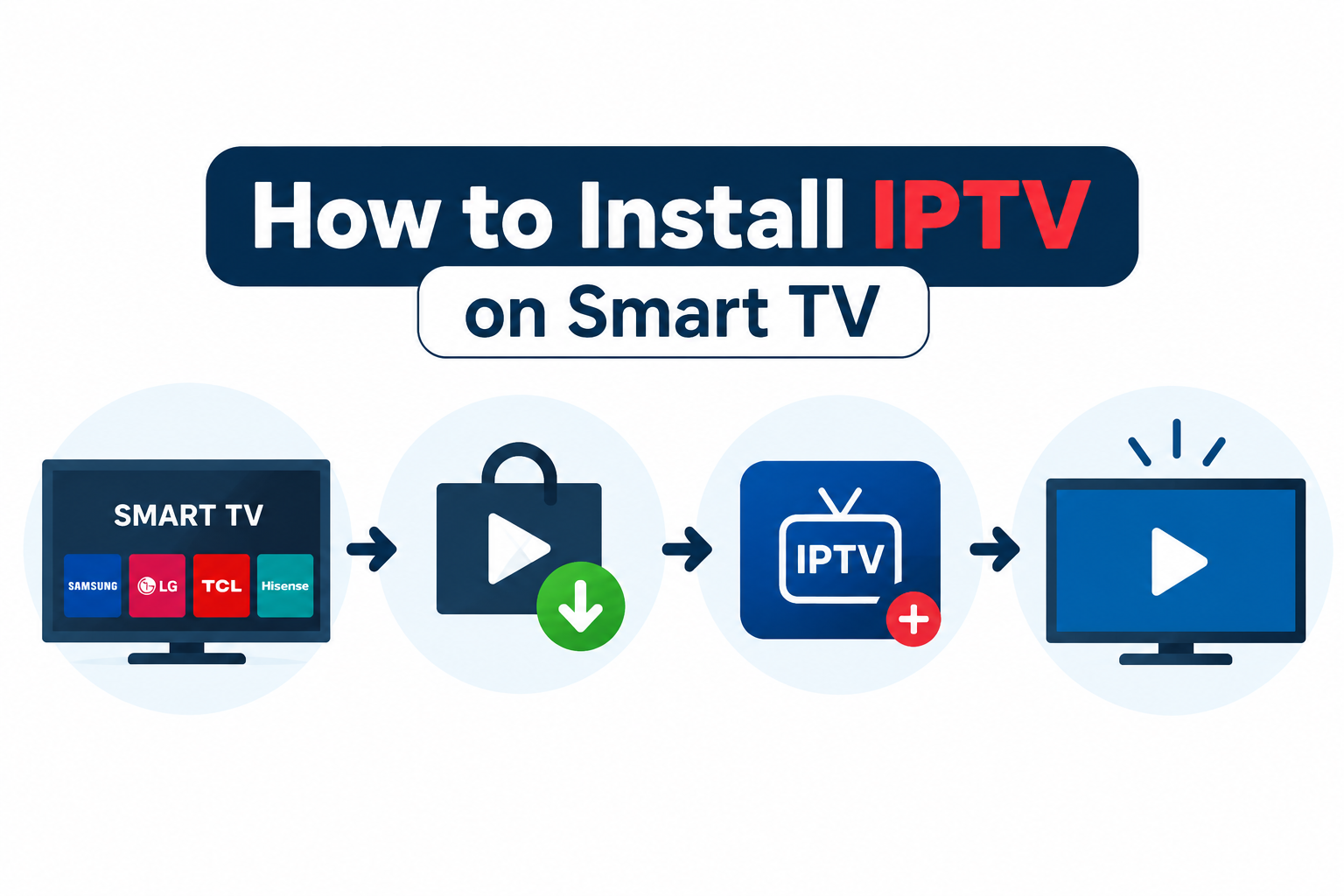
Before you start an IPTV Smart TV setup, it is important to know what type of television you have. Smart TVs do not all use the same operating system, and this determines which IPTV applications you can install.
These platforms normally provide access to Google Play Store and support a wide range of IPTV players.
Samsung TVs use Tizen, so applications must be compatible with the Samsung TV environment.
LG Smart TVs generally use webOS and use the LG Content Store for compatible applications.
You will also need a reliable internet connection and IPTV access information supplied by the service you are authorized to use. Depending on the player, this may be an M3U playlist URL, an Xtream Codes login, or another supported connection method.
Important: IPTV players are generally media players. They do not automatically provide television channels. You need a legitimate and authorized playlist or service to load content into the player.
The first step is identifying your TV platform. This is one of the most important parts of learning how to install IPTV on Smart TV, because the installation process is different between Android TV, Google TV, Samsung Tizen and LG webOS.
| TV / Device | Typical Platform | Installation Approach |
|---|---|---|
| Android TV | Android TV | Google Play Store or supported sideloading |
| Google TV | Google TV | Google Play Store or supported sideloading |
| Samsung Smart TV | Tizen | Samsung app store with compatible IPTV applications |
| LG Smart TV | webOS | LG Content Store with compatible applications |
| Fire TV Stick | Fire TV | Amazon Appstore or Downloader where appropriate |
This distinction is important because an IPTV application designed for Android TV should not automatically be assumed to work on Samsung Tizen or LG webOS. Always check compatibility with your specific TV model and region before installing an application.
Android TV and Google TV are among the easiest platforms for IPTV installation because compatible applications can often be installed directly from Google Play Store.
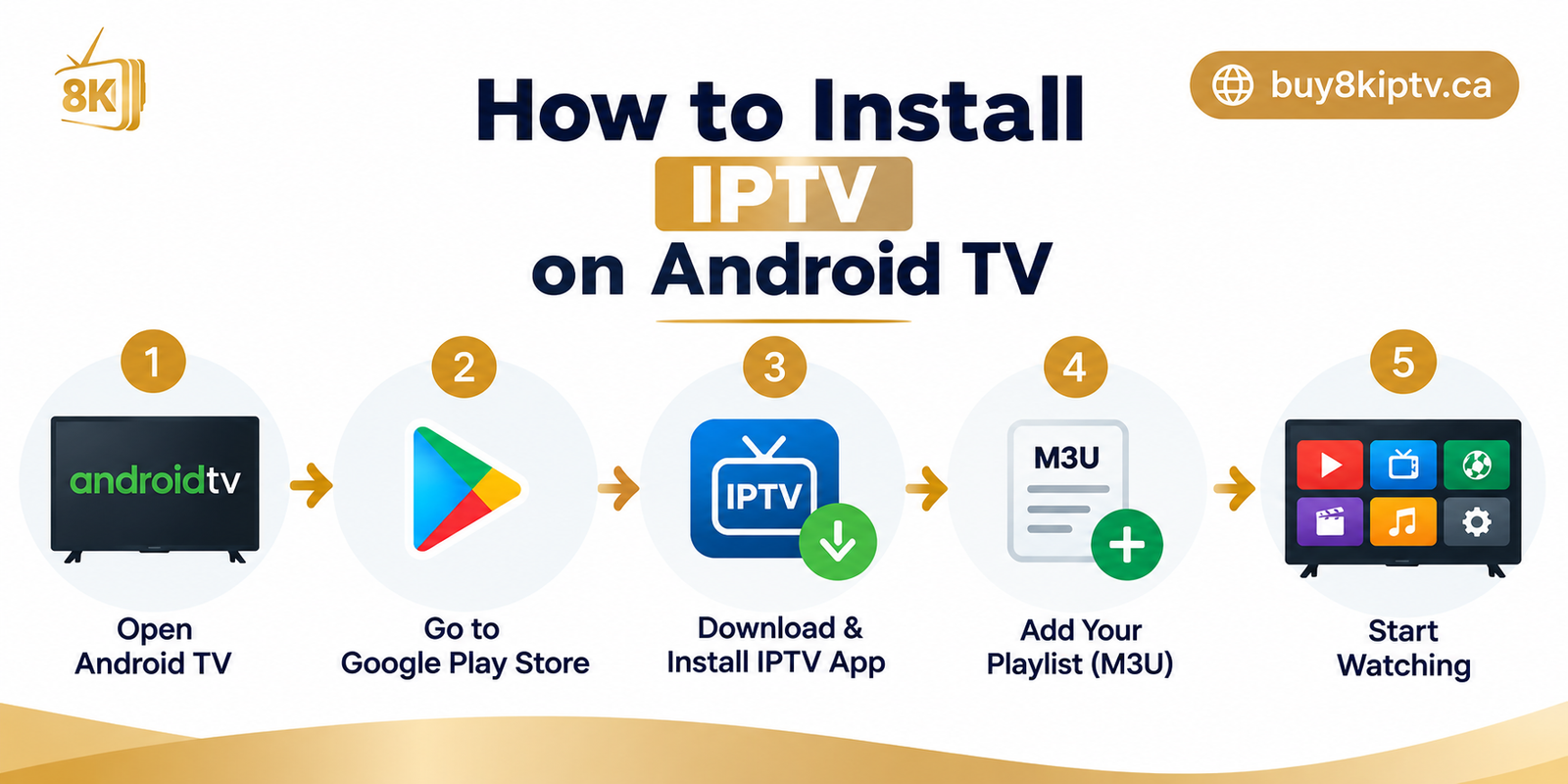
From the home screen of your Android TV or Google TV device, open the Google Play Store.
Search for an IPTV player that is available for your device. Examples of players used on Android-based TV devices include TiviMate, IPTV Smarters and other compatible players.
Select the compatible application and choose Install. Wait until the installation is complete, then open the application.
Depending on the player, you may be asked to add an M3U playlist URL or enter Xtream Codes information such as server URL, username and password.
Some Android-based TVs and streaming devices allow applications to be installed using the Downloader app. This is commonly called sideloading. It can be useful when an application is not available directly through the standard app store.
The exact menus can vary depending on the device and software version. Only install applications from a source you trust, and avoid downloading modified or unofficial APK files.
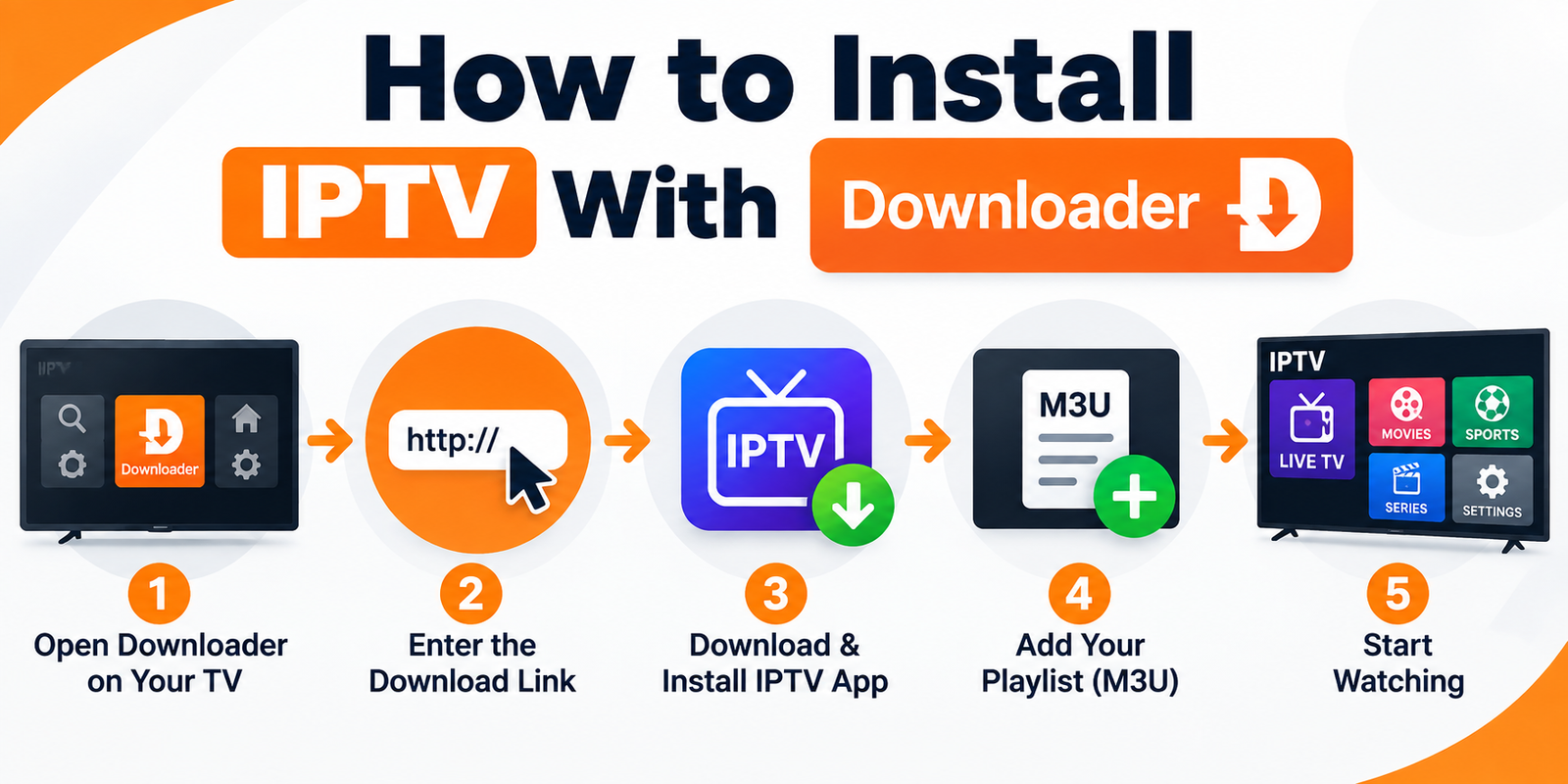
Open the available app store on your compatible Android TV or Fire TV device and search for the Downloader application. Install it if it is available for your device.
On devices that require it, open the device settings and allow Downloader to install applications from unknown sources. The exact location of this setting varies by device and software version.
Open Downloader and enter the official installation address or code supplied by the application developer or the source you trust.
Security tip: Do not use random Downloader codes found in comments, forums or unknown websites. A code can redirect you to an APK or website that has nothing to do with the application you intended to install.
When the correct installation file opens, follow the on-screen instructions. After installation, you can remove the downloaded APK file if your device gives you that option to free storage space.
If your Android TV or compatible streaming device supports Downloader, you can use the installation method provided by the 8K IPTV Player tutorial. The important point is that this method is for supported devices; it should not be presented as a universal installation method for every Smart TV.
The general process is: open Downloader, use the official installation code or address provided for the application, install 8K Player VIP, then open the player and add the IPTV credentials supplied to you.
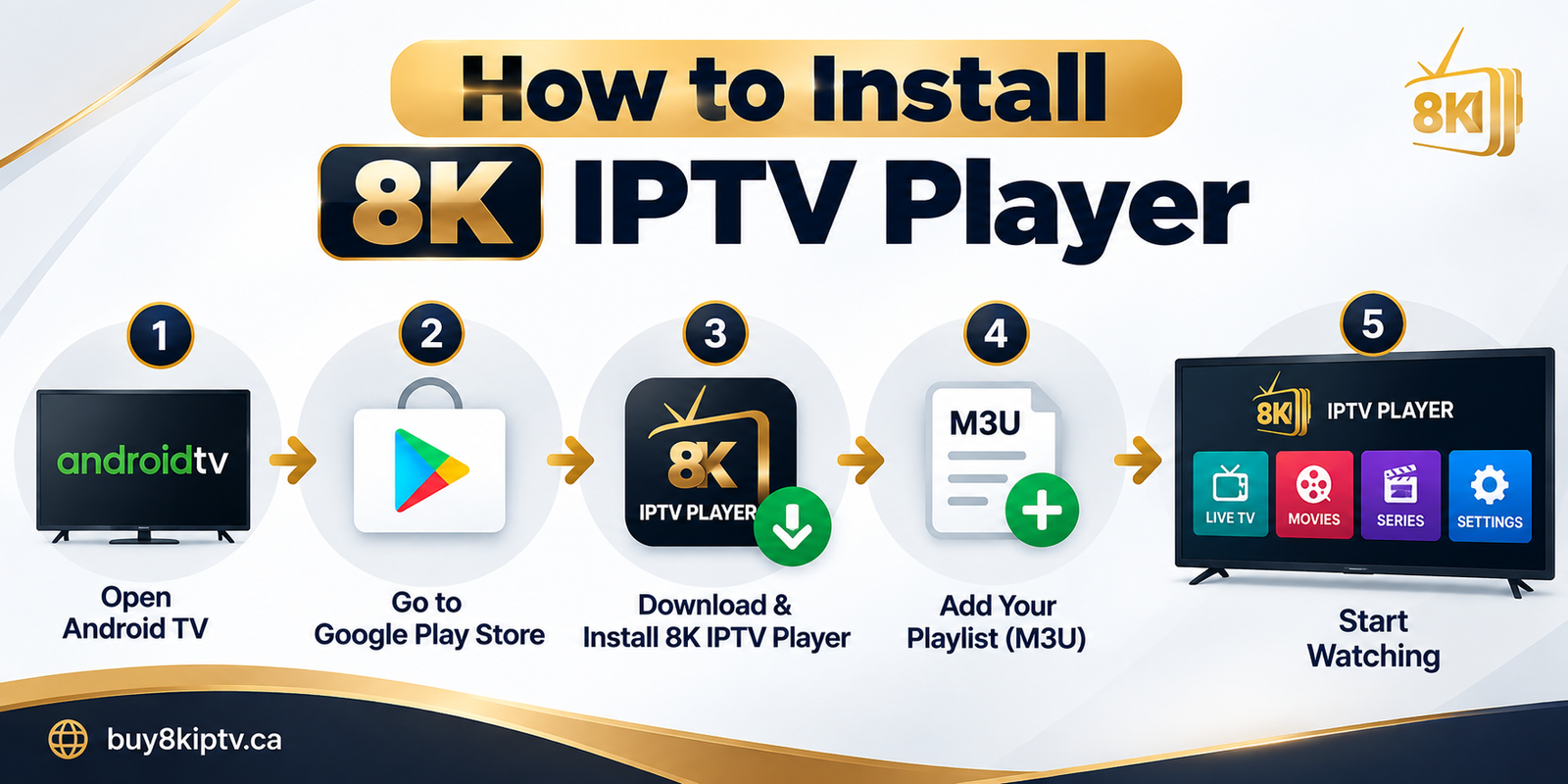
The exact screens and wording can change when the application is updated, so users should follow the current installation instructions provided by the application source rather than relying on an old screenshot or outdated code.
After opening the player, look for an option such as Add Playlist, Edit Playlist, Add User or a similar menu. The name depends on the application version.
If your IPTV service provides Xtream Codes, you will normally need the server URL, username and password. If it provides an M3U playlist, you may instead need to paste the M3U URL into the player.
Keep your IPTV username, password and playlist URL private. Do not publish your credentials in screenshots, comments or public posts.
Samsung Smart TVs use the Tizen platform, so Android TV applications and Android APK installation methods should not automatically be applied to Samsung TVs.
From your Samsung Smart TV home screen, open the Apps section.
Search for an IPTV player that is actually available for your Samsung TV and region. App availability can vary between models and countries.
Install the compatible application and open it after installation.
Follow the player's instructions to enter your authorized M3U playlist or supported login information.
Because Samsung uses Tizen, an Android-only player such as an Android APK should not be assumed to work on the television. Always check the app listing for Samsung/Tizen compatibility.
LG Smart TVs generally use webOS. This means the installation process is different from Android TV and Google TV.
Open the application store on your LG Smart TV.
Search for a compatible IPTV application. Availability depends on the TV model, webOS version and region.
Select the compatible player and choose Install.
Open the application and follow its instructions to add your authorized M3U playlist, Xtream Codes credentials or another supported connection method.
Remember: Downloader instructions designed for Android TV or Fire TV should not automatically be used on an LG webOS television.
Sony Smart TVs can use different software platforms depending on the model and generation. Many current Sony models use Google TV, while other models may use Android TV or another platform.
The easiest way to identify your installation method is to check whether your TV has the Google Play Store or Google TV interface. If it does, you can generally follow the Android TV / Google TV installation process described earlier in this guide.
If your Sony TV uses a different platform, check the available application store and use a player designed for that platform.
There is no single IPTV player that should automatically be recommended for every Smart TV. The best option depends first on compatibility, then on the features you actually need.
Check whether the player supports Android TV, Google TV, Tizen, webOS or your specific device before installing it.
If your service provides M3U, make sure the player supports M3U playlists. If you receive Xtream Codes, check for Xtream Codes support.
An Electronic Program Guide can make live TV navigation easier by showing program information when supported by your playlist.
A good Smart TV player should be easy to navigate using the television remote rather than requiring a phone or keyboard.
For Android TV users, players such as TiviMate and other Android-compatible applications are commonly designed around TV navigation. Some multi-device IPTV players are also available across Android and Smart TV platforms. Always verify current availability before installing.
Installing an IPTV application is only the first step. If IPTV is not working on your Smart TV, the problem may be caused by the application, login information, internet connection, playlist or device rather than the installation itself.
IPTV buffering is often related to network quality, Wi-Fi congestion, device performance or the streaming source. Start by testing your internet connection and restarting the TV and router.
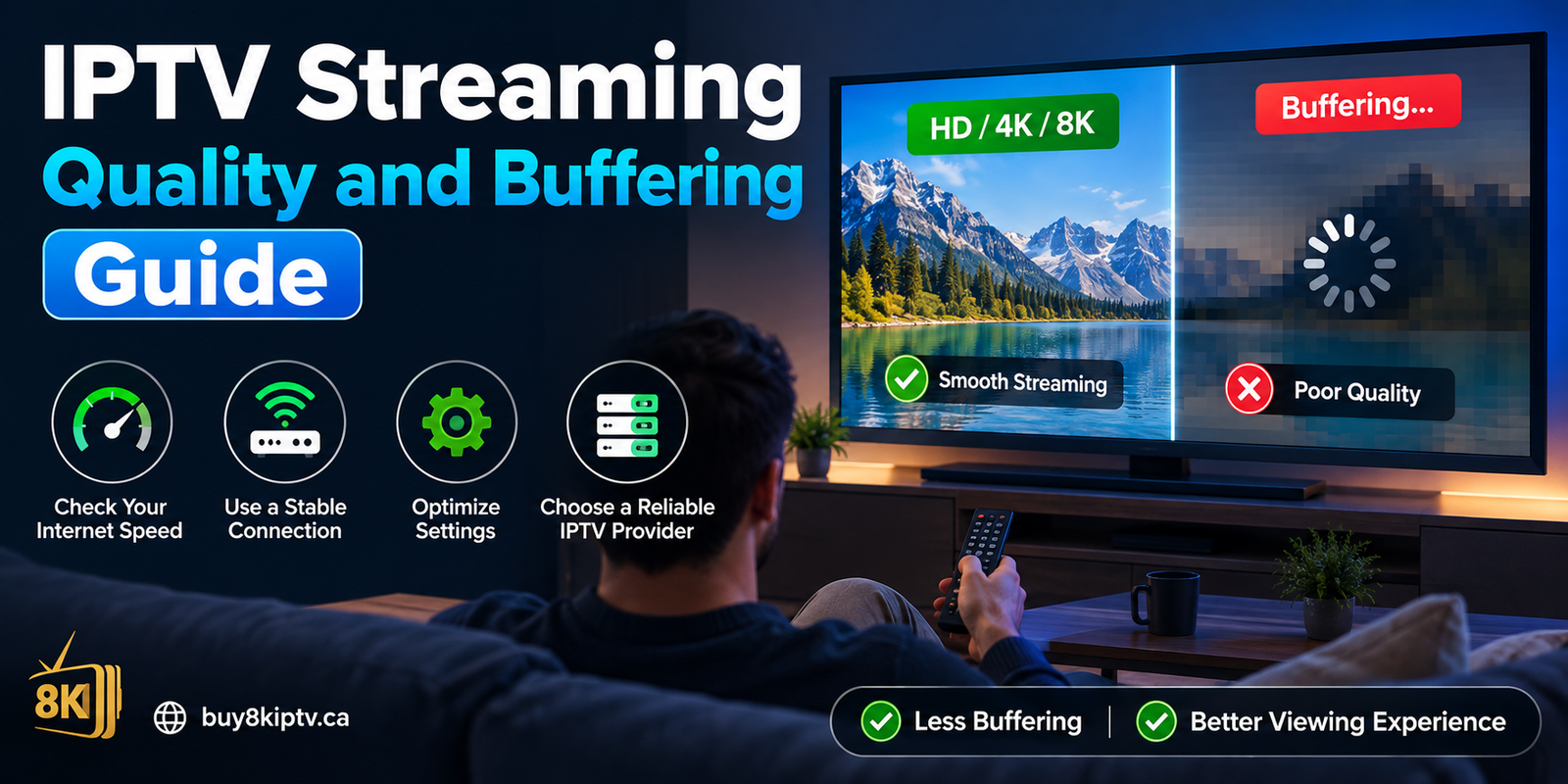
First close and reopen the application. If the problem continues, check whether the application has an update available and confirm that your TV has enough free storage.
Carefully check the username, password and server URL if you are using Xtream Codes. If you use an M3U playlist, make sure the complete URL has been copied correctly.
If only certain channels fail while others work normally, the issue may be specific to those streams. If the entire playlist fails, verify your login information and connection before changing applications.
A good IPTV setup on Smart TV is not only about installing an application. Your network, TV hardware and application settings can all affect playback quality.
A wired connection can provide more consistent network performance than a weak or congested Wi-Fi connection.
Updates can improve compatibility, stability and performance.
Check for available firmware or system updates for your Smart TV.
Higher resolution requires more bandwidth and processing power. If your connection struggles with 4K playback, testing a lower quality stream can help determine whether bandwidth is contributing to the problem.
Downloads, cloud backups, gaming and multiple simultaneous streams can compete for bandwidth. Reducing network traffic can improve consistency when your connection is limited.
IPTV can be used on many Smart TVs, but the installation method depends on the operating system. Android TV, Google TV, Samsung Tizen and LG webOS do not use exactly the same applications or installation methods.
Yes, if a compatible IPTV player is available through the Samsung app environment for your model and region. Samsung TVs use Tizen, so Android APK installation methods should not be assumed to work.
Yes. LG Smart TVs use webOS, and compatible IPTV applications can be installed through the available LG application store when supported by the TV model and region.
Open Google Play Store, search for a compatible IPTV player, install it and then add your authorized IPTV playlist or login details. If a compatible application is not available through the store, some Android TV devices may support installation through Downloader.
Downloader can be used for sideloading on supported Android TV and Fire TV devices. The exact process depends on the device, and users should only use trusted installation sources.
8K Player VIP is an IPTV player used to load supported IPTV playlists or login information on compatible devices. The installation method depends on the device and the current instructions supplied by the application source.
Buffering can be caused by Wi-Fi quality, network congestion, device performance or the stream itself. Restarting the router, testing Ethernet and reducing other network traffic are useful first troubleshooting steps.
No. A Fire TV Stick is only one possible device. Depending on your television, you may be able to install a compatible IPTV player directly on Android TV, Google TV, Samsung Smart TV or LG Smart TV.
If you want to learn more about IPTV players and device-specific setup, these resources can provide additional technical information:
Guides covering different IPTV players, playlists and supported devices.
Additional information about IPTV applications and compatible devices.
Additional information about the Bob Player IPTV application.
Information about IPTV player features and supported devices.
IPTV players and app availability can change over time. Always verify that an application is compatible with your specific Smart TV model, operating system and region before installing it.
The easiest way to understand how to install IPTV on Smart TV is to start with the television's operating system rather than choosing a random IPTV application. Android TV and Google TV generally provide a wide selection of compatible IPTV players, while Samsung Tizen and LG webOS require applications designed for their respective platforms.
If your device supports Downloader, you may also be able to use a sideloading method for a compatible IPTV player such as 8K Player VIP. The important thing is to use the current installation instructions for your device and to keep your login information private.
Once your IPTV player is installed, a stable internet connection, correct playlist credentials and a compatible application are the main ingredients for a smooth Smart TV experience.
If you are using Buy8KIPTV.ca and have questions about device compatibility, setup or IPTV player configuration, our team is available to help answer your questions and guide you through the setup process.
You can also explore our IPTV Devices Guide , IPTV Setup Guide , IPTV Plans and Free Trial pages for more information.
Legal and responsible use: Always make sure that the IPTV service, playlist and content you use are properly authorized for your location and intended use. IPTV is a technology for delivering media over IP networks; the legality of particular content depends on the rights and permissions associated with that content.