
How to Fix IPTV Buffering: 10 Ways to Stop IPTV From Freezing
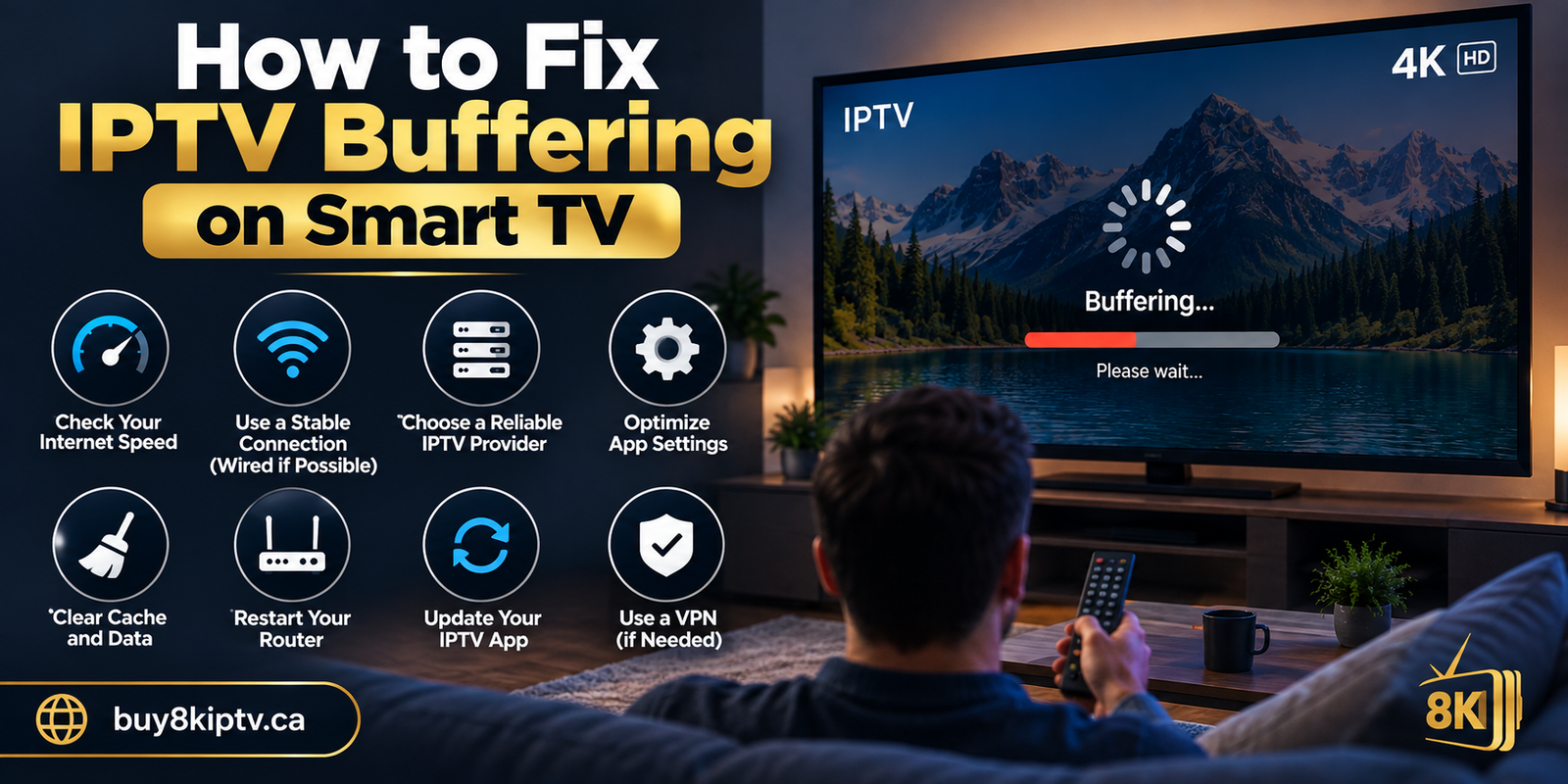
How to fix IPTV buffering starts with finding the real cause of the problem. IPTV can freeze or pause because of an unstable Wi-Fi connection, network congestion, device performance, an IPTV player issue, or a problem affecting a particular stream. The good news is that you can usually narrow down the cause with a few simple tests before changing your entire setup.
In this guide, we explain how to fix IPTV buffering on Smart TV, Android TV and Firestick. You will learn how to check your internet connection, improve Wi-Fi, test Ethernet, restart your equipment, clear application cache, identify stream-specific problems and decide when the issue may be related to the player or source.
Why Does IPTV Keep Buffering?
IPTV buffering happens when the video player cannot receive or process enough data to continue playback smoothly. Instead of having enough video data ready to play, the player has to wait for more information. This creates the familiar loading circle, frozen picture or repeated pauses.
There is not always one single reason for IPTV buffering. Your home network, Wi-Fi signal, router, streaming device, application and individual stream can all play a role.
This is why the best way to learn how to fix IPTV buffering is to troubleshoot one variable at a time. If you change your router, IPTV player, Wi-Fi network and device settings simultaneously, it becomes difficult to know which change actually solved the problem.
Does Internet Speed Affect IPTV Buffering?
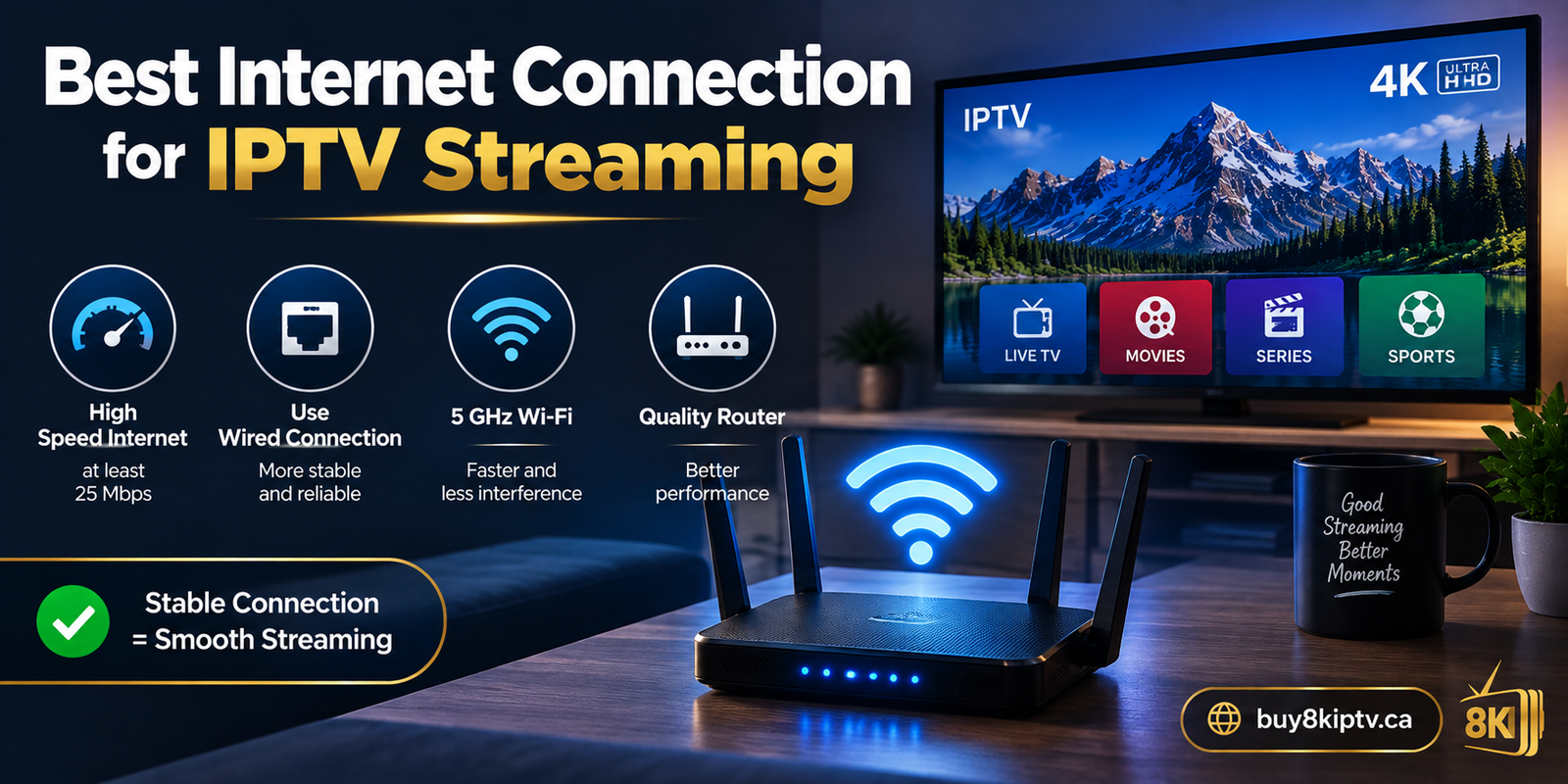
Internet speed can affect IPTV streaming, especially when several devices are using the same connection. Streaming on a television while other people are downloading large files, gaming, using cloud backups or watching other videos can reduce the bandwidth available to your IPTV device.
However, a high-speed internet package does not automatically guarantee smooth IPTV playback. Stability is also important. A connection can have a high advertised download speed while still experiencing wireless interference, congestion or temporary instability.
Test the Connection on the Same Device
When troubleshooting buffering, test the internet connection from the same Smart TV, Android TV box or Firestick that is experiencing the problem. Testing only from your phone does not always tell you how strong the connection is where the IPTV device is located.
If possible, compare playback at different times of day. If IPTV works normally during quieter periods but becomes unstable when your home network is heavily used, network congestion may be contributing to the issue.
How Wi-Fi Can Cause IPTV Buffering
Wi-Fi is convenient because you do not need a network cable running to your television. But the quality of a wireless connection depends on distance, walls, interference, router position and the number of devices sharing the network.
A television in a room far away from the router may have a much weaker signal than a smartphone sitting next to the router. This difference matters when troubleshooting IPTV freezing.
How to Fix IPTV Buffering by Improving Wi-Fi
Start with a simple test: move the IPTV device closer to the router temporarily and play the same content. If buffering becomes less frequent, the wireless connection deserves further attention.
You can also try reconnecting the TV or streaming device to your Wi-Fi network and checking whether your router offers different wireless bands. Google recommends checking the correct Wi-Fi network and band on Google TV, and also suggests moving the router closer or using a cable when connection problems occur.
Ethernet vs Wi-Fi for IPTV
Ethernet connects the streaming device directly to the router using a network cable. For a stationary Smart TV or streaming box, this can provide a more consistent connection than wireless networking in environments where Wi-Fi is weak or crowded.
That does not mean Ethernet is mandatory. A strong and stable Wi-Fi connection can work perfectly well. The purpose of testing Ethernet is to determine whether wireless connectivity is contributing to the buffering.
| Connection | Potential Advantage | What to Check |
|---|---|---|
| Ethernet | Consistent wired connection | Cable and router port |
| 5 GHz Wi-Fi | Good performance at shorter distances | Distance and walls |
| 2.4 GHz Wi-Fi | Often better range | Wireless congestion |
How to Fix IPTV Buffering: 10 Solutions
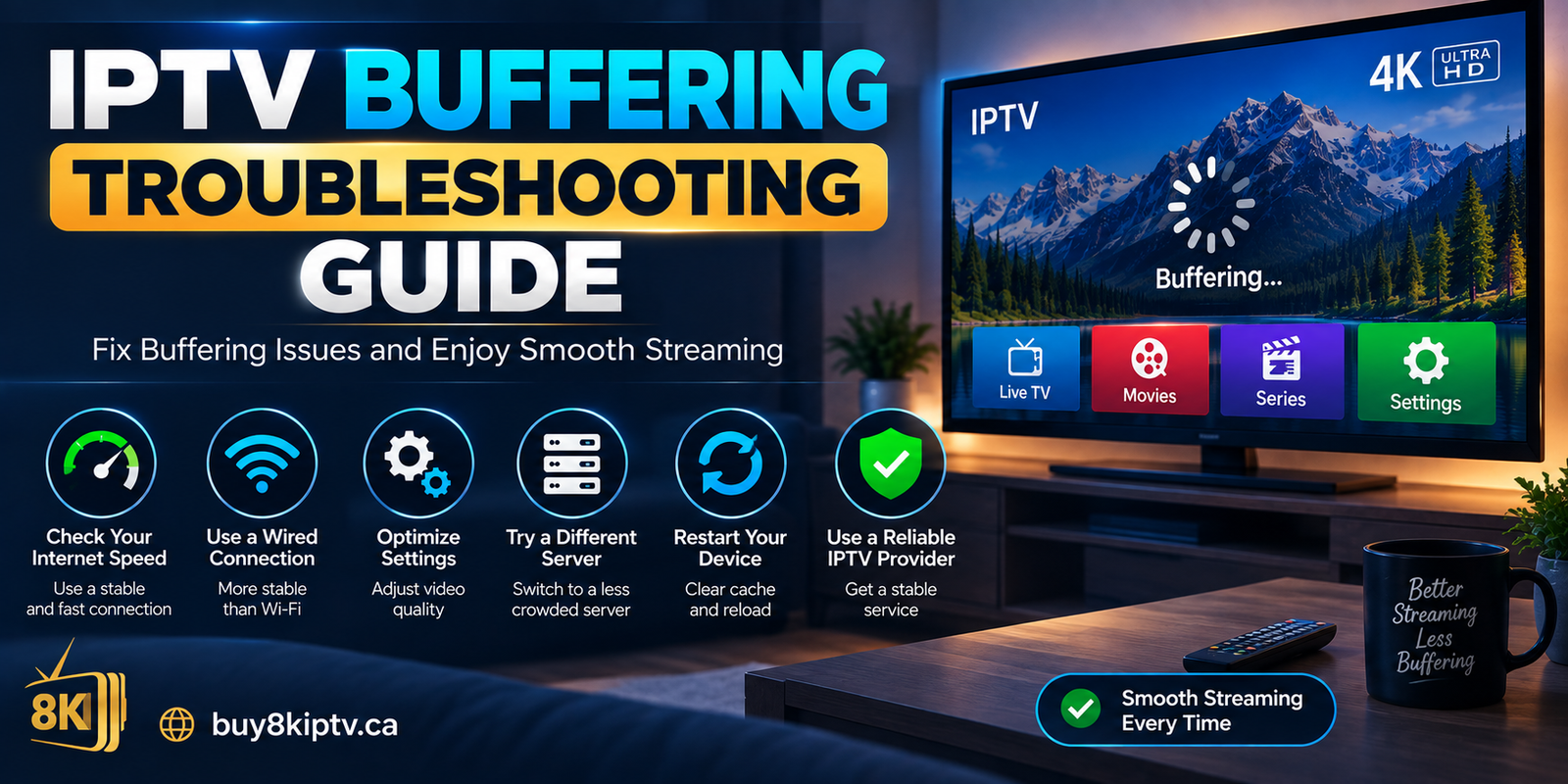
If you are searching for how to fix IPTV buffering, work through these ten solutions in order. Start with the simplest checks before making advanced changes.
Restart your Smart TV, Android TV box or Firestick. A restart can clear temporary software issues and close processes that may be using system resources.
Restarting the router can refresh the home network connection. Amazon also recommends restarting networking equipment when troubleshooting certain Fire TV connection problems.
Make sure the device is connected to the intended Wi-Fi network. Test the connection from the device itself rather than assuming the internet is working because another device is online.
Temporarily reduce the distance between your router and IPTV device. This is a quick way to determine whether signal strength is contributing to buffering.
If your television or streaming box has an Ethernet port, connect it directly to the router and compare playback.
Pause large downloads, cloud backups, game updates or unnecessary video streams while testing IPTV playback.
On supported Android TV devices, application cache can be cleared from the application settings. Google includes clearing app data and cache among its troubleshooting steps for Android TV.
If one channel buffers but several others play normally, the problem may be specific to that stream rather than your entire network.
Check for available system and application updates. Keeping supported software current can remove known application or compatibility problems.
If buffering happens mainly at certain hours, compare the same content at another time. This can help identify congestion or stream-specific patterns.
How to Fix IPTV Buffering on Smart TV
When IPTV buffers on a Smart TV, first determine whether the problem affects the whole television or only the IPTV application. Open another streaming application and test a video.
How to Fix IPTV Buffering on Smart TV by Testing the Network
If other streaming applications also struggle, focus on the TV's internet connection. Restart the TV and router, reconnect the network and test again.
If other applications play normally while IPTV continues buffering, the problem may be isolated to the IPTV application, playlist or a particular stream.
How to Fix IPTV Buffering on Smart TV With Ethernet
If your Smart TV supports Ethernet, connect it directly to the router. Play the same content again and compare the result with Wi-Fi.
If buffering disappears with Ethernet, you have a strong indication that your wireless network needs attention rather than immediately replacing your IPTV player.
How to Fix IPTV Buffering on Android TV
Android TV and Google TV provide several useful troubleshooting controls. Google recommends checking Wi-Fi, updating the system, restarting the device and, when appropriate, clearing application data or cache when dealing with playback problems.
How to Fix IPTV Buffering on Android TV by Restarting
Open the device settings and restart the Android TV or Google TV device. After it starts again, open the IPTV application and test playback.
This is a simple first step and should be done before making more significant changes to the application or device.
How to Fix IPTV Buffering on Android TV by Clearing Cache
On supported Android TV devices, open Settings, go to Apps, select the relevant IPTV application and look for the cache option.
Be careful with Clear Data. Clearing data can reset application information, depending on the player. If your application stores playlist or login information locally, you may need to enter it again.
Check for Android TV Updates
Also check for system updates and application updates. Google specifically includes checking system software updates and restarting the device in its Android TV troubleshooting guidance.
How to Fix IPTV Buffering on Firestick
Firestick users can experience buffering because of Wi-Fi quality, device resources, application cache or stream-specific issues. The same diagnostic approach applies: isolate the cause instead of changing everything at once.
How to Fix IPTV Buffering on Firestick by Restarting
Restart the Firestick and test the IPTV application again. Amazon's Fire TV troubleshooting guidance also recommends restarting the Fire TV and, for certain connection issues, restarting the modem and router.
Check the Firestick Wi-Fi Connection
Open the network settings and verify that the Firestick is connected to the intended Wi-Fi network. If the device is far from the router, temporarily move it closer and test the same stream.
Clear the IPTV App Cache on Firestick
If the IPTV application continues to behave poorly, check its application settings and use the available cache controls when supported. Amazon provides cache and application-management troubleshooting options for Fire TV devices.
Can an IPTV Player Cause Buffering?
An IPTV player can affect playback, but it should not automatically be blamed for every buffering problem. Players differ in their interfaces, playback engines, supported formats and available settings.
If your network is stable and other content plays normally, testing another compatible player can be useful. The purpose is to compare results and determine whether the application is involved.
For example, TiviMate Player is designed for Android TV devices and provides IPTV playlist functionality. Its site also publishes troubleshooting information for buffering and other player issues.
Another option is to review a player such as BOB Player if it is compatible with your device. The important point is not to change players randomly; use another compatible player as a controlled troubleshooting test.
How to Know if the Stream Is the Problem
One of the most useful tests is to compare multiple channels or streams.
Suppose one channel freezes repeatedly while several other channels play normally for a long period. That pattern can indicate that the problem is specific to the affected stream.
On the other hand, if every channel buffers and other streaming applications also struggle, your network or device deserves more attention.
| What You Notice | What to Test |
|---|---|
| Only one channel buffers | Test several other channels |
| All IPTV channels buffer | Check network and device |
| Other streaming apps also buffer | Check internet/Wi-Fi |
| Wi-Fi buffers but Ethernet works | Investigate wireless network |
| Only one IPTV player has the problem | Test another compatible player |
Advanced IPTV Buffering Troubleshooting
If the basic steps did not solve the problem, move to controlled tests rather than changing advanced settings without knowing what they do.
Test Another Device
If IPTV buffers on your Smart TV, test the same type of content on another compatible device using the same network. If the second device works normally, the original TV or player may need further investigation.
Test Another Network
When practical, testing the device on another reliable network can help isolate whether the issue comes from your home connection.
Check Device Storage
Streaming devices with very limited free storage can experience broader application problems. Remove applications you no longer use and keep the device reasonably maintained.
Check Background Activity
Large downloads, updates and cloud synchronization can compete for network resources. Pause unnecessary background activity while testing IPTV.
Useful IPTV Troubleshooting Resources
If you want to investigate a specific player or platform, the following resources can be useful. These are external references selected because they contain relevant IPTV player or troubleshooting information.
TiviMate Troubleshooting
Learn more about TiviMate features and troubleshooting options for supported Android TV devices.
Visit TiviMate resource →BOB Player Guide
Review BOB Player information and supported IPTV playback features for compatible devices.
View BOB Player guide →NET IPTV Playlist Guide
If you use NET IPTV, its playlist guide explains how playlist loading and basic troubleshooting work.
View NET IPTV guide →Strong 8K IPTV Guides
Explore additional IPTV streaming and device optimization information.
View IPTV streaming resource →More IPTV Setup Guides
If your buffering issue started after setting up a new device, review the IPTV setup guide for general configuration information.
You can also review the IPTV devices guide if you are comparing compatible streaming hardware.
For additional information about the site's available plans and options, visit the IPTV plans page.
Frequently Asked Questions About IPTV Buffering
How to fix IPTV buffering quickly?
Start by restarting your IPTV device and router. Then test the internet connection, check Wi-Fi signal quality, try Ethernet if available and compare another channel. These steps can quickly help identify whether the problem is your network, device or a specific stream.
Why does IPTV keep buffering even with fast internet?
A fast internet package does not guarantee a stable connection. Wi-Fi interference, network congestion, router issues, device performance, player problems or a specific stream can still cause buffering.
How to fix IPTV buffering on Smart TV?
Check the Smart TV's network connection, restart the TV and router, test another streaming application and compare Wi-Fi with Ethernet if your TV supports it. If other applications work normally, investigate the IPTV application and individual streams.
How to fix IPTV buffering on Android TV?
Restart the Android TV device, check the Wi-Fi connection, install available system updates and clear the IPTV application's cache when appropriate. Google recommends these types of troubleshooting steps for Android TV playback problems.
How to fix IPTV buffering on Firestick?
Restart the Firestick, check its Wi-Fi connection, restart the router if necessary, clear the relevant application's cache when supported and test another stream. If possible, compare playback with another compatible device.
Can Wi-Fi cause IPTV freezing?
Yes. Weak signal strength, distance from the router, interference and network congestion can make wireless streaming unstable. Testing Ethernet is a useful way to determine whether Wi-Fi is involved.
Is Ethernet better than Wi-Fi for IPTV?
Ethernet can provide a more consistent connection because it avoids many wireless variables. However, a strong and stable Wi-Fi connection can also provide good IPTV playback.
Why does only one IPTV channel buffer?
If other channels play normally, the issue may be specific to that stream. Test several other channels before changing your entire network or IPTV setup.
Final Thoughts on How to Fix IPTV Buffering
How to fix IPTV buffering becomes much easier when you troubleshoot the problem systematically. Start with the internet connection, Wi-Fi signal, router and device. Then test Ethernet, application cache, different streams and another compatible player if necessary.
The most important step is identifying the pattern. If everything buffers, investigate the network and device. If only one stream buffers, test other streams. If Wi-Fi causes problems while Ethernet works normally, focus on the wireless connection.
If you still have questions about your IPTV setup, you can also contact Buy8KIPTV.ca and provide details about your device, connection type and the exact buffering problem. Having those details ready can make troubleshooting much easier.
View IPTV Setup Guide